
Why This Matters
Linking a teacher to your account makes it clear which teachers are connected to your brand and allows you to assign the right teacher to the right offer.
This is especially important if your organisation runs events or courses under a business or brand account. The system is designed so the teacher must first be connected to the brand before they can be selected elsewhere. That fits the wider move to a simpler structure, with course creators managed through one clear membership rather than separate trainer accounts.
What This Means for You
- This process is for Brand add-ons and Business memberships only
- You must associate a partner teacher to your brand first
- You cannot select a teacher on an event or course until that link has been made
- Once the teacher is linked, they can be chosen as the teacher on relevant listings
- This supports a clearer account structure with one login and a more connected brand setup.
What You Need to Do
- Log in to your Professional or Business account
- Go to the area where you manage your brand or partner teachers
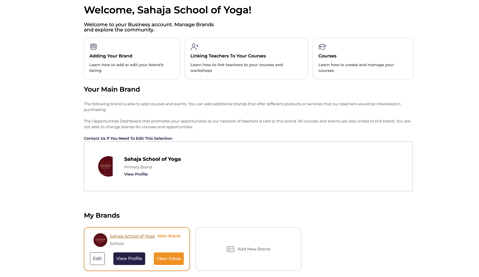
- For businesses: Select 'edit' on the brand in your dashboard
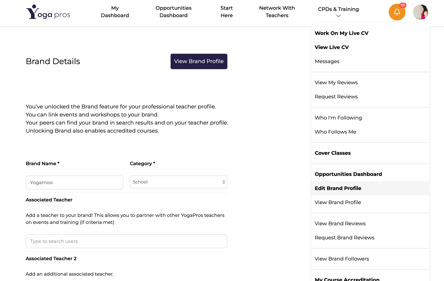
- For professionals: Click on your profile picture in the top right and select 'Edit Brand Profile'
- For businesses: Select 'edit' on the brand in your dashboard
- Add the associate teacher
- Save that connection
- Go to your event or course
- Choose that linked associate teacher from the teacher selection field
General
If you cannot see the teacher when setting up your event or course, check that they have already been added as an associate teacher under your brand first.